Updating
QR Code in GJIS if you are using Myinvois Portal to create your eInvoice
After
creating eInvoice in myinvois portal, you can scan the LHDN QR code and update
in GJIS system.
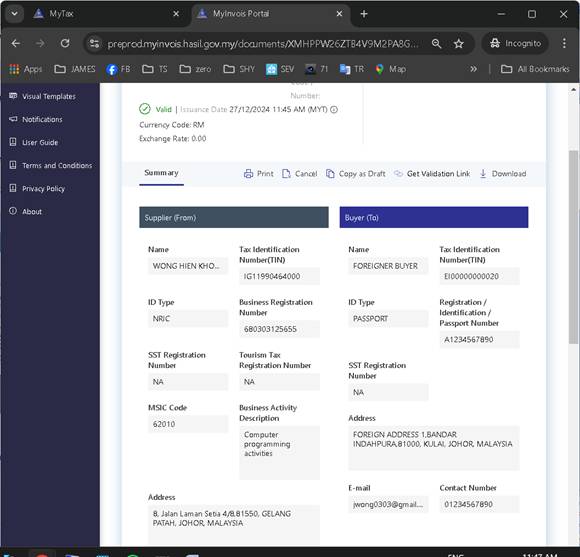
- At myinvois portal, locate the
einvoice manually created.
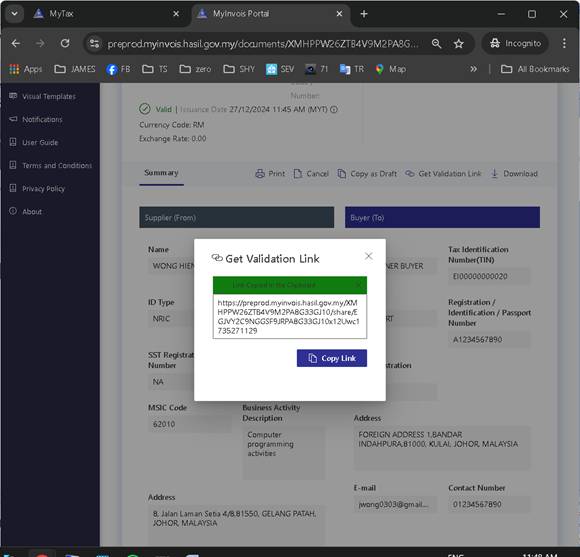
- Click on “Get Validation Link”

- Click on “Copy Link”
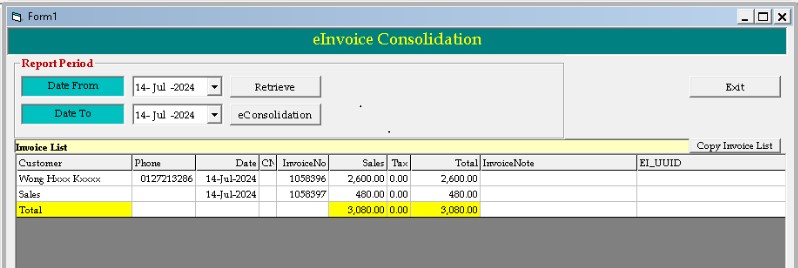
- Go back to GJIS : eInvoice-Sales
List. Doubleclick on the invoice number that you want to update
5. Paste the above validation link into the QR Code box as shown below
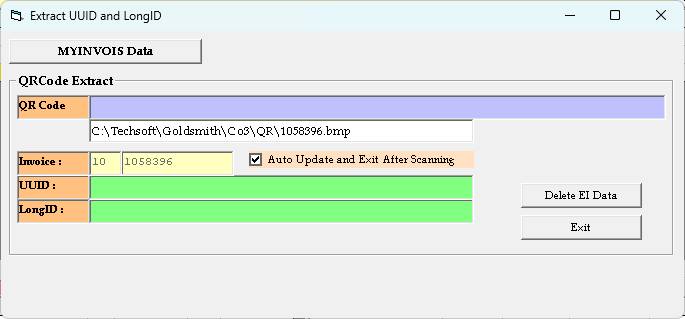
6. GJIS will capture the eInvoice
UUID and LongID automatically
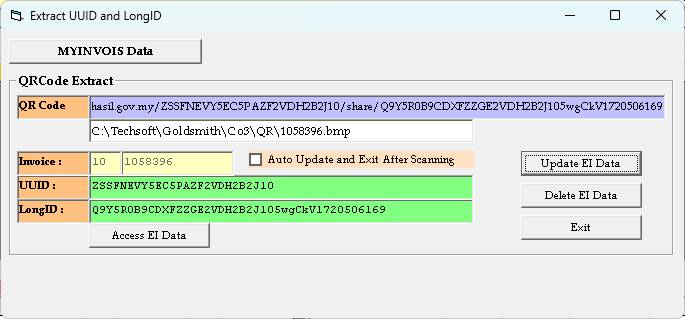
7. When you reprint sales
invoice at GJIS, the QR code will be printed on top right.
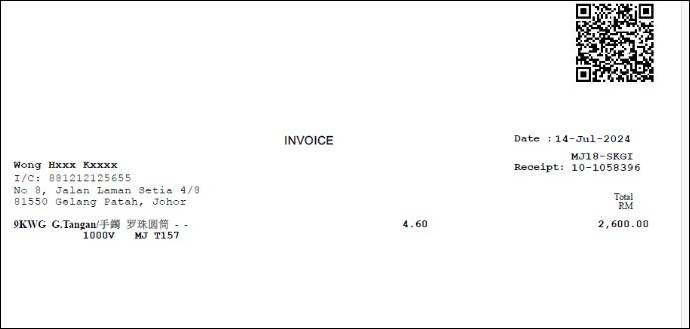
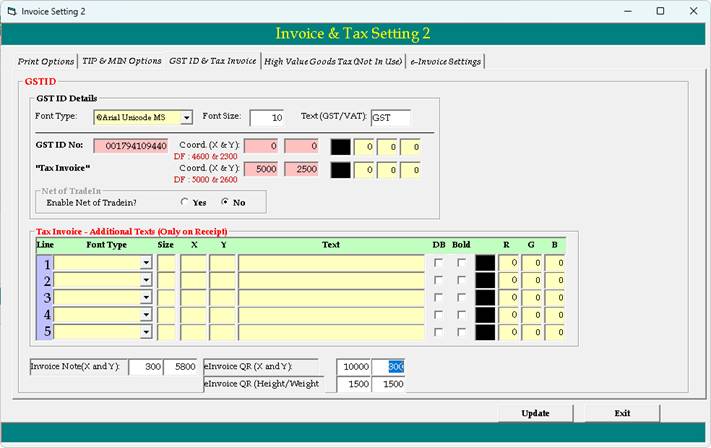
8. Position and Size
of QR code can be changed by going to
Setting-InvoiceSetting2-GSTID & Tax
Invoice.
X
& Y is position of QR Code.
Height and Weight is size of the QR Code.